A day before the highly anticipated launch of Grand Theft Auto 6, Rockstar Games told Kotaku that even the PS5 Pro lacked the CPU headroom to run the game at 60fps, and that no 40fps or 60fps mode would come to current-gen consoles. Some players, myself included, thought differently.
I decided the game wasn’t worth playing at a locked 30fps, so I stayed up all Friday night streaming it from my PS5 to my PC. Using a capture card was the most popular trick, but I thought that an $80 game shouldn’t need a $160 device to run at the frame rate I wanted.
Sony’s Remote Play app was an embarrassment that kept crashing, my controller kept kicking me out of the stream, and the first frame generation setup made driving feel like driving a bad RC car. After hours of work, I finally found a free, open-source tool that looks and feels like the performance mode Rockstar never shipped.
Leonida deserves more than 30 frames a second
And my base PS5 can’t always give me that
GTA 6 is perhaps the most ambitious, visually rich, and densely simulated game of the decade. Leonida is bursting with detail, its streets teeming with life, and there are an impossible number of things happening on screen no matter where you find yourself in the world. Even on the base PS5, it renders at 1440p with ray-traced reflections and global illumination, but ironically, everything in the game environment tells you this is a world meant to be moved through fluidly, and a locked 30fps does a disservice to all of it.
What makes it worse is that 30fps is a ceiling, not a floor, on my console. In its launch week, Digital Foundry caught the base PS5 slipping below 30fps when driving hard, and dropping to the mid-20s for entire stretches once explosions started piling up. The reviewers added that the PS5 Pro seemed to fare much better in the same tests, but perhaps that’s what Sony’s marketing around “PS5 Pro Enhanced” had been alluding to besides PSSR and ray-traced shadows.
I’d concede that part of the problem is my own PC-gaming-oriented setup, which makes the flaws impossible to overlook. My Alienware AW2726DM is a QD-OLED, and since OLED pixels switch almost instantly, nothing blurs one frame into the next. At 30fps, every quick swing of the camera turns into a series of visible steps, so it was almost inevitable that I’d reach for a workaround sooner rather than later.
All I needed was a feed of GTA 6 on my PC
An open-source app beat Sony to it
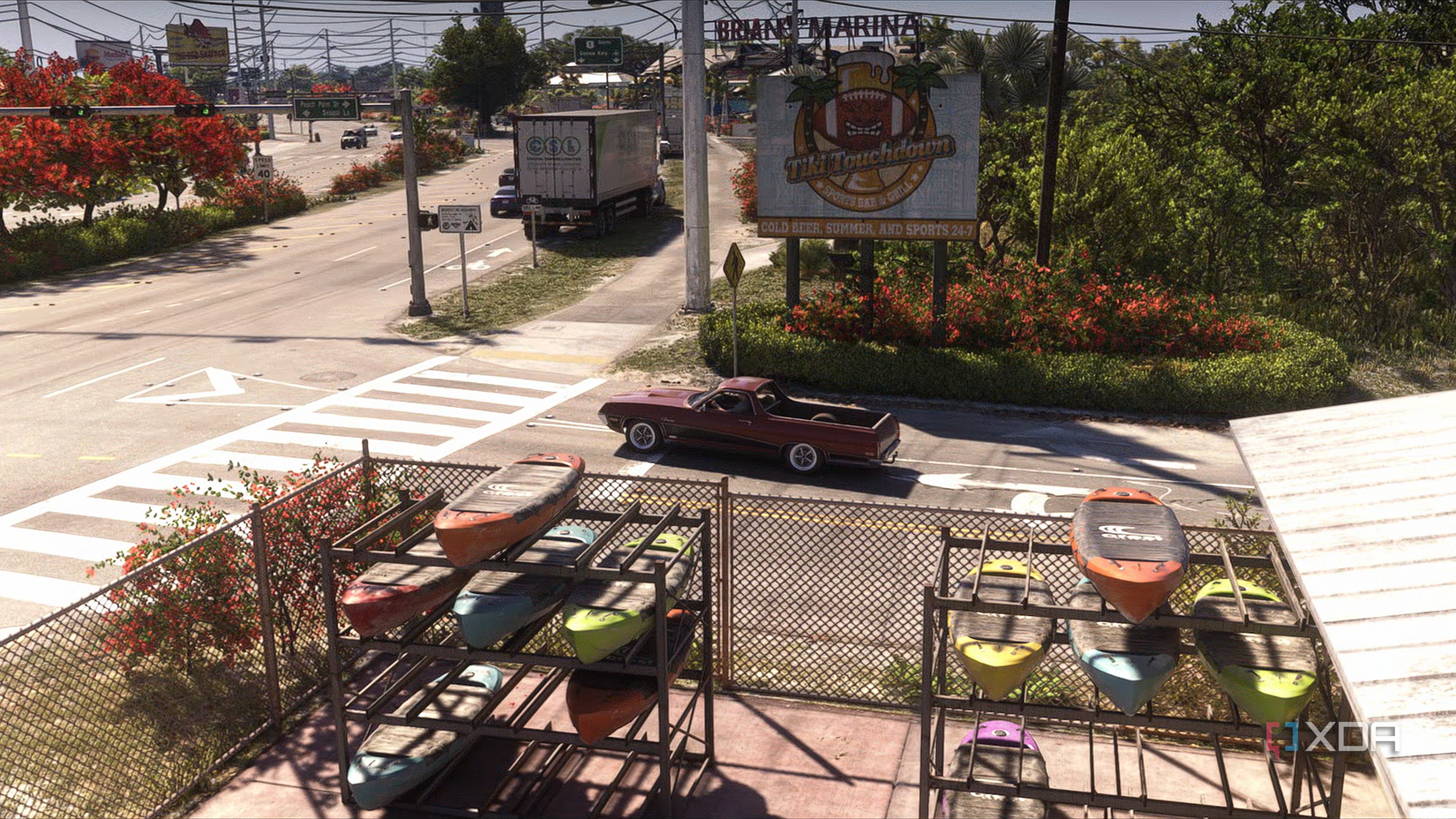
These days, all that one often needs for frame generation to work is a feed of the game. My first mistake was assuming that Sony’s official Remote Play app would be the best way to get it. Much to my surprise, the app crashed every time I opened it, and every troubleshooting effort went absolutely nowhere.
So I took the path of least resistance: using chiaki-ng. It’s a free, open-source Remote Play client that talks to the PS5 using the same protocol as Sony’s app. Once it was paired, it took me a few minutes and some fine-tuning related to the DualSense to get GTA 6 up and running on my PC in Windows 11.
Immediately after the first boot, I reached for Lossless Scaling, a $7 frame generation and upscaling app on Steam. Remote Play caps the output at 1080p, so chiaki-ng’s built-in upscaler upscaled the stream to match the monitor’s 1440p, and Lossless Scaling generated frames on top of it.
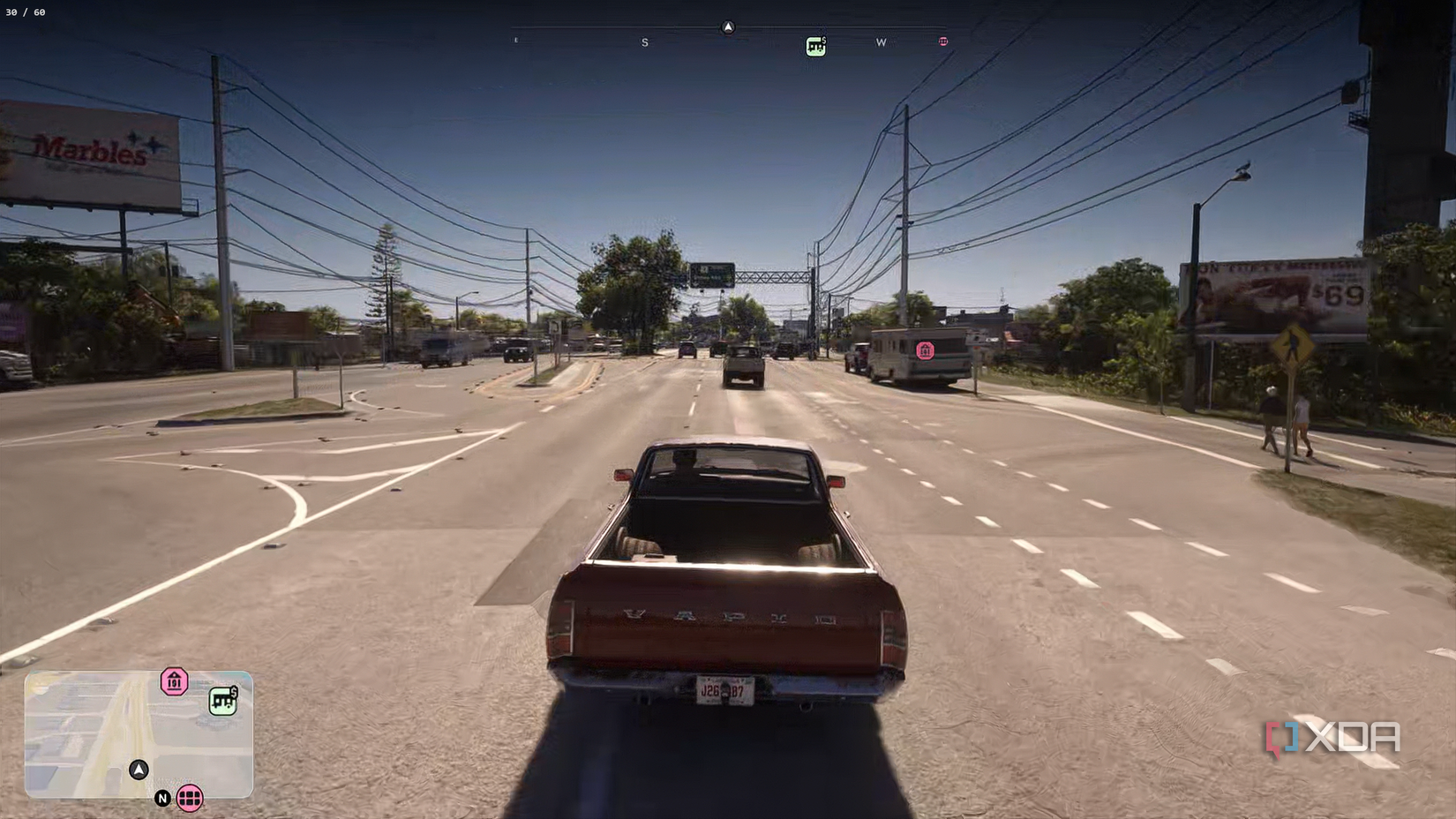
This, however, created two problems: latency and interpolation artifacts, both by-products of frame generation. The artifacts flared up on Jason’s face on fast camera swings, and on top of that, Lossless Scaling’s FSR pass made everything grainy and stole from the visuals, which, in a game that looks this good, was an unacceptable compromise.
The latency was the bigger issue here. Lossless Scaling can’t build an in-between frame until the next real frame arrives, and at 30fps, the next one is always 33.3ms away. That made sudden movements unplayable, and when driving in a game that’s as fast-paced as GTA 6, not registering those movements in time is the best way to drive head-first into the oncoming traffic.
SmoovPlay got the lag out of the way
And RTX Video Super Resolution got rid of the grain
At this point, my experiments with Lossless Scaling coupled with chiaki-ng had replaced one compromise with another, so the next step was finding a way to address latency as much as possible and the graininess imparted by FSR. The solution to both problems for me came through SmoovPlay, another free, open-source tool with the Remote Play client built in. It worked better because it could generate frames straight from the video stream instead of capturing a window on my screen.
The frame generation on SmoovPlay comes from RIFE, an AI interpolation model, and for upscaling, it offers a choice between FSR 1 and Nvidia’s RTX Video Super Resolution. On my RTX 4070 Ti Super, I went with the latter, and the graininess that FSR had left all over the stream in my first setup was gone.
As I got behind the wheel, the difference almost felt like magic. Input delay felt absent, and driving with precision was finally possible. Streetlights and crosswalks stayed sharp, and the unpleasant smearing around the car was gone too. SmoovPlay’s counter put its added delay at 18ms, though that figure only covered its own processing, not the full trip from my analog stick to the screen, so I’d take it with a grain of salt.
I didn’t need a capture card to play GTA 6 at 60fps
For anyone excited about the SmoovPlay approach, one thing to note is that GTA 6 still responds to input 30 times per second, and every extra frame is generated on my PC. SmoovPlay, in my experience, hides the seams better than everything else I’ve tried, and without a capture card, it’s the one approach worth taking.
Story via XDA Developers. Read the original article